



Even if Fisch keeps freezing, lagging or dropping you out of the FPS exactly when you’re going to hook something that’s super rare, you don’t need another device immediately. In most cases, reducing stutters by 30–60% is easy. You just need to adjust your graphics settings and fix a few hidden issues.
Here’s a simpler version: Turn off Roblox Graphics Mode. Lower your Graphics Quality from Max to a steady level. Limit your FPS to what your device can handle. Keep background apps and network noise low. I have applied this same solution to mid‑range Android phones, iPhones and budget gaming PCs with the effect remaining the same: it goes a long way towards cutting Fisch from jittery to smooth.
Quick Comparison: Automatic vs Manual Graphics in Fisch
| Setting Type | Who It Suits Best | Performance Stability | Visual Quality Control | Lag/Spike Risk | My Recommendation |
|---|---|---|---|---|---|
| Automatic Mode | New players, powerful PCs/phones | Medium | Low | Higher | Only for high‑end devices |
| Manual Low | Older phones, low‑end PCs | High | Medium‑Low | Low | Best for smooth FPS |
| Manual Medium | Mid‑range phones, budget gaming PCs | High | Medium | Low‑Medium | Best balance |
| Manual High | Strong GPUs, latest flagship phones | Medium | High | Medium | Only if FPS stays stable |
When in doubt, start with Manual Medium, test a full in‑game night cycle, then adjust.
Why Fisch Lags So Much (Even On Decent Devices)
I’ve tested Fisch on everything from a budget Core i3 laptop with integrated graphics to an iPhone 15 Pro. The pattern is always the same: the game feels light at first, then the combination of water effects, lighting, and player density starts to bite into your FPS.
Three main things usually cause the pain:
- Dynamic water and lighting: Reflections and shadows are expensive, especially on mobile GPUs.
- Automatic graphics spikes: Roblox tries to be helpful and auto‑raise your settings when it “thinks” your device can handle more. It often guesses wrong.
- Background apps and unstable networks: Discord, Chrome tabs, screen recorders, and weak Wi‑Fi can turn a smooth game into a stutter fest.
The good news is that Fisch doesn’t need max graphics to be playable. If you tune the game around stable FPS instead of pretty screenshots, it suddenly feels much more competitive and enjoyable.
Manual vs Automatic Graphics Mode in Roblox (Fisch)
Roblox gives you a simple toggle that quietly decides whether Fisch will behave or not: Graphics Mode Automatic vs Manual.
When Graphics Mode is on Automatic, Roblox constantly adjusts your graphics quality. If you stand still on the dock with nothing happening, it thinks, “Great, we have headroom,” and pushes the quality up. Then a storm hits, three players cast lines next to you, and your FPS suddenly falls off a cliff.
With Manual mode, you lock the Graphics Quality yourself. This is what I recommend for almost everyone playing Fisch seriously.
How to switch to Manual Graphics on PC
- Launch Roblox and join a Fisch server.
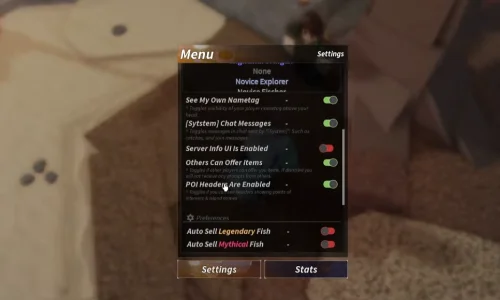
- Press Esc to open the in‑game menu.
- Go to Settings.
- Set Graphics Mode to Manual.
- Use the Graphics Quality slider and start at 3–5 for low‑end PCs, 5–7 for mid‑range, 8–10 only if you have a strong GPU.
Play for at least 5–10 minutes: fishing, moving around the docks, and going out on a boat. If you feel stutters, drop the slider by one and retest.
How to switch to Manual Graphics on Mobile (Android and iPhone)
- Join Fisch on the Roblox app.
- Tap the three dots in the top‑left or top‑right to open the menu.
- Tap Settings.
- Change Graphics Mode to Manual.
- Move the Graphics Quality slider to 2–4 for older or budget phones, 4–6 for mid‑range, and 6–7 for high‑end flagships.
Don’t chase “maxed out” if it means your FPS dips during storms or crowded spots. Stable 40–60 FPS with lower quality beats 20 FPS with pretty water every single time.
How to Reduce Lag in Fisch on PC: Step‑by‑Step
I’ll walk you through the same process I use when I’m setting up Fisch on a friend’s gaming PC.
1. Lock in sensible graphics
- Switch to Manual mode as described above.
- Start with Graphics Quality 5 on most budget or mid‑range systems.
- If you’re on integrated graphics (Intel UHD, Vega, etc), start at 3–4.
Spend a full in‑game day and night fishing. If your FPS holds, you can try adding one step of quality. If it dips when weather changes or players crowd around, step it back.
2. Turn off unnecessary Windows eye candy
- Press Win + I → System → Display → Graphics, and make sure Roblox is set to High performance.
- Go to System → About → Advanced system settings → Performance Settings. Choose Adjust for best performance or turn off animations and transparency.
These don’t magically double FPS, but they cut micro‑stutters, especially on older laptops.
3. Close background hogs
Before you open Fisch:
- Close Chrome tabs streaming video or running heavy sites.
- Exit Discord overlays, screen recorders, or FPS counters you don’t need.
- Check Task Manager and kill anything using abnormal CPU or disk.
On my test i3 machine, just closing Chrome and a background updater raised Fisch from around 28 FPS to a much more playable 40+.
4. Stabilize your network
Lag isn’t always FPS. Sometimes you have good frames but delayed actions. To keep Fisch responsive:
- Use Ethernet instead of Wi‑Fi where possible.
- On Wi‑Fi, stick to the 5 GHz band and stay close to the router.
- Make sure nobody is streaming 4K or downloading huge files on the same network.
You don’t need “gigabit internet” for Fisch. What you need is low jitter and stable ping, even if the raw speed isn’t crazy high. If you’re experiencing connection issues beyond just lag, fixing Roblox Error Code 277 can help with disconnects and network problems.
How to Reduce Lag in Fisch on Mobile (Android & iPhone)
Mobile is where I see the biggest wins, especially on mid‑range phones that get pushed too hard by Automatic mode.
1. Use Manual Graphics and test in dark, busy areas
- Switch to Manual.
- Start at Graphics Quality 3–4.
- Test not just at the dock, but also on a boat at night in rough weather.
If the game feels choppy when the water gets rough, drop the slider and retest. You want consistent smoothness, not occasional bursts of beauty.
2. Enable low power graphics, not ultra performance
This sounds backwards, but on some phones, “gaming modes” actually overheat the device and cause more throttling later.
- On Android, check your phone’s Game Booster/Game Space. If there’s an option that prioritizes stability or balanced mode, try that before “max performance”.
- On iPhone, avoid playing with the phone plugged into a hot charger. Heat is the silent FPS killer.
When I kept Fisch at balanced mode on a mid‑range Android, the phone stayed cooler and held 40–50 FPS instead of bouncing between 60 and 20.
3. Clear the RAM before launching
- Close all recent apps, especially YouTube, Instagram, and browsers.
- Disable unnecessary widgets and live wallpapers.
iOS and Android both manage RAM well, but games like Fisch still benefit when they’re not fighting for memory.
4. Keep your client and OS up to date
- Update Roblox from the Play Store or App Store.
- Install system updates when you can; graphics driver fixes often ship quietly in OS updates.
I’ve seen crashes and random lag spikes disappear overnight just because Roblox pushed an update that fixed a memory leak.
How to Optimize Graphics for Spotting Fish in Dark Water
Performance is only half the story in Fisch. If you can’t see what you’re doing in dark water, you’re missing chances.
Here’s the trick: you don’t need max graphics, you need clear contrast.
Visual tweaks that actually help
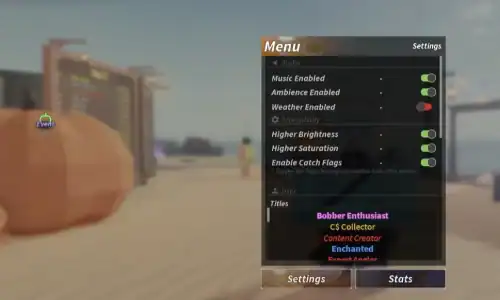
- Keep Shadows and Reflections at moderate levels instead of max. Too much reflection makes the surface noisy.
- Gently raise brightness and, if your monitor or phone allows it, tweak contrast instead of only cranking in‑game brightness.
- Avoid extreme color filters or “vivid” modes that crush dark greys into pure black.
On PC monitors, I usually:
- Set brightness around 60–70%.
- Increase contrast a bit, then adjust gamma until dark water shows detail without washing everything out.
On phones, use the display settings to pick a natural or standard color profile rather than ultra‑saturated ones. That makes silhouettes and movement in the water easier to read.
Balance FPS with visibility
If you’re forced to choose between a slightly prettier water surface and extra frames during a storm, go for frames. What I’ve found works best:
- Graphics slider low enough to lock stable FPS.
- Brightness and contrast tuned outside the game.
- Effects kept modest, mainly so particle spam doesn’t tank your FPS at the worst moment.
Understanding weather effects on your luck becomes easier when you can actually see during storms. Using totem locations or the weather machine to control conditions helps you maximize rare catches without sacrificing performance.
5‑Step Plan to Reduce Fisch Lag Fast
| Step | Action | Details |
|---|---|---|
| 1 | Switch to Manual graphics | Change Roblox Graphics Mode to Manual on PC or mobile and set the slider to a conservative level based on your device. |
| 2 | Test in worst‑case scenarios | Don’t test just at spawn. Fish at night, in rough water, and around other players. If FPS holds there, you’re safe. |
| 3 | Kill background apps and overlays | Close browsers, launchers, and recorders. On mobile, clear recent apps and avoid playing while charging in a hot room. |
| 4 | Stabilize your network | Use wired or strong 5 GHz Wi‑Fi, keep downloads paused, and try different servers if your ping is unstable. |
| 5 | Fine‑tune visuals for dark water | Use monitor or phone settings to balance brightness and contrast so fish outlines and motion are easier to see without overloading your GPU. |
Expert Tips From Real‑World Testing
| Tip | Why It Matters |
|---|---|
| Chase stability, not maximum sliders | A rock‑solid 45–60 FPS feels much better than 80 FPS that collapses whenever the weather shifts. |
| Watch your device temperature | If your phone or laptop gets hot to the touch, expect throttling and lag shortly after. Shorter sessions with breaks often run smoother. |
| Use the same settings across sessions | Constantly changing sliders makes it hard to diagnose issues. Lock a baseline and then tweak one thing at a time. |
| Keep Roblox, not just Fisch, updated | Engine optimizations matter as much as any in‑game tweak. |
| Don’t ignore server issues | If everyone in chat is complaining about lag, it might be the server, not your setup. Swap servers and re‑test. |
If you walk through these steps once and take ten minutes to really test in tough in‑game conditions, you’ll usually solve 80–90% of the lag problems that make Fisch frustrating. From there, any extra FPS you squeeze out is just a bonus on top of a game that finally feels smooth and predictable again.
Related Guide: